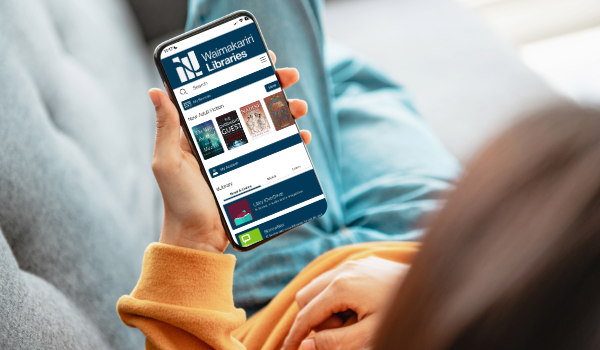
The Waimakariri Libraries app provides quick access to our catalogue and services. Use the app to track your loans, reserve items, and much more.
You can download the app on your device using the App Store or Google Play.
What can you do on the App?
- Check your library account and manage checkouts, holds and renewals
- NEW: Explore new titles from our collections
- NEW: Receive notifications for when holds you have requested are available
- NEW: Access eLibrary resources
- NEW: Find out what is happening in the library and book for upcoming events
- Search our catalogue and place holds on items
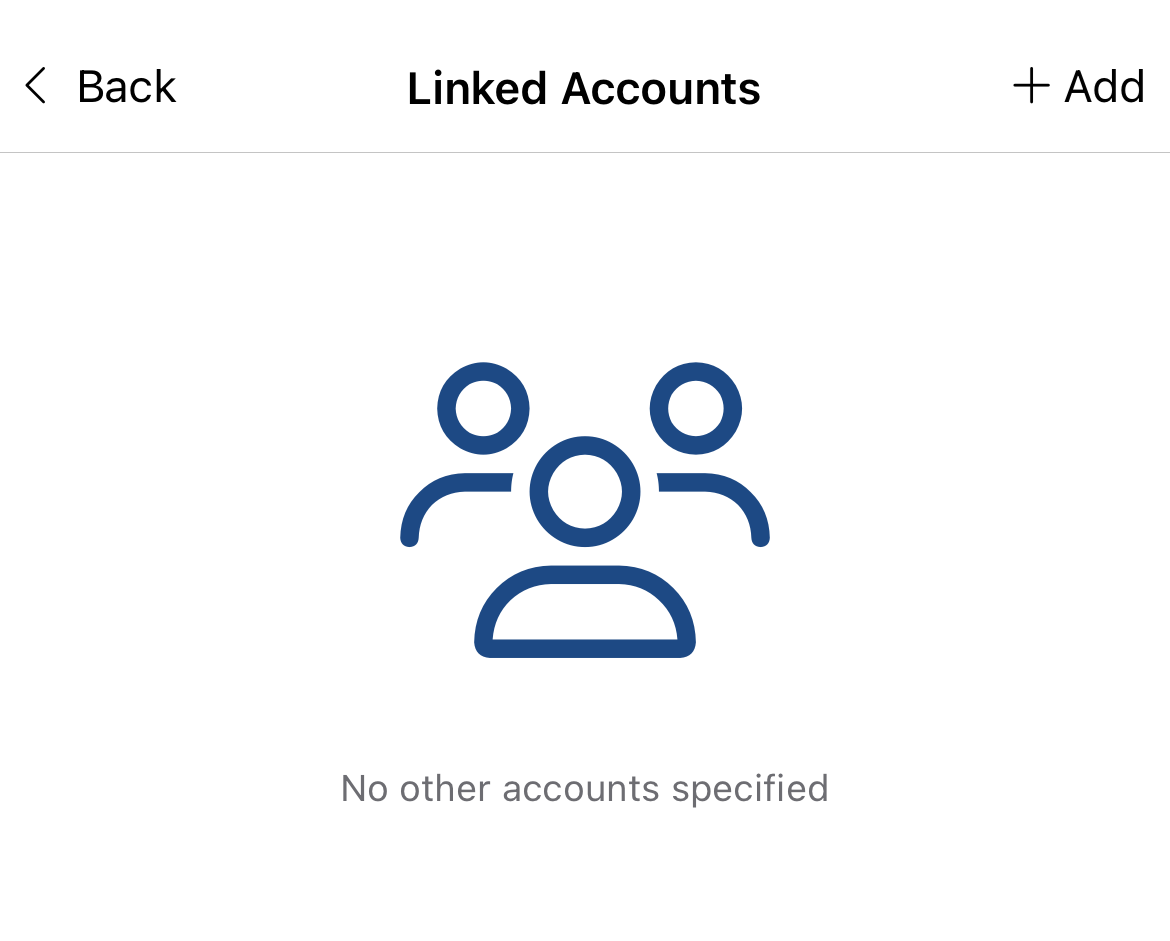
- Link multiple cards for quick whānau access
- Find your local library and opening hours
- Create your own reading lists
- Track your latest reads and leave reviews
- Use your phone as your library card when borrowing items
- Scan the IBSN barcode on a book to see if the library has a copy
- Connect with us via Instagram, Facebook or email
- Sign up to our monthly newsletter
Notifications
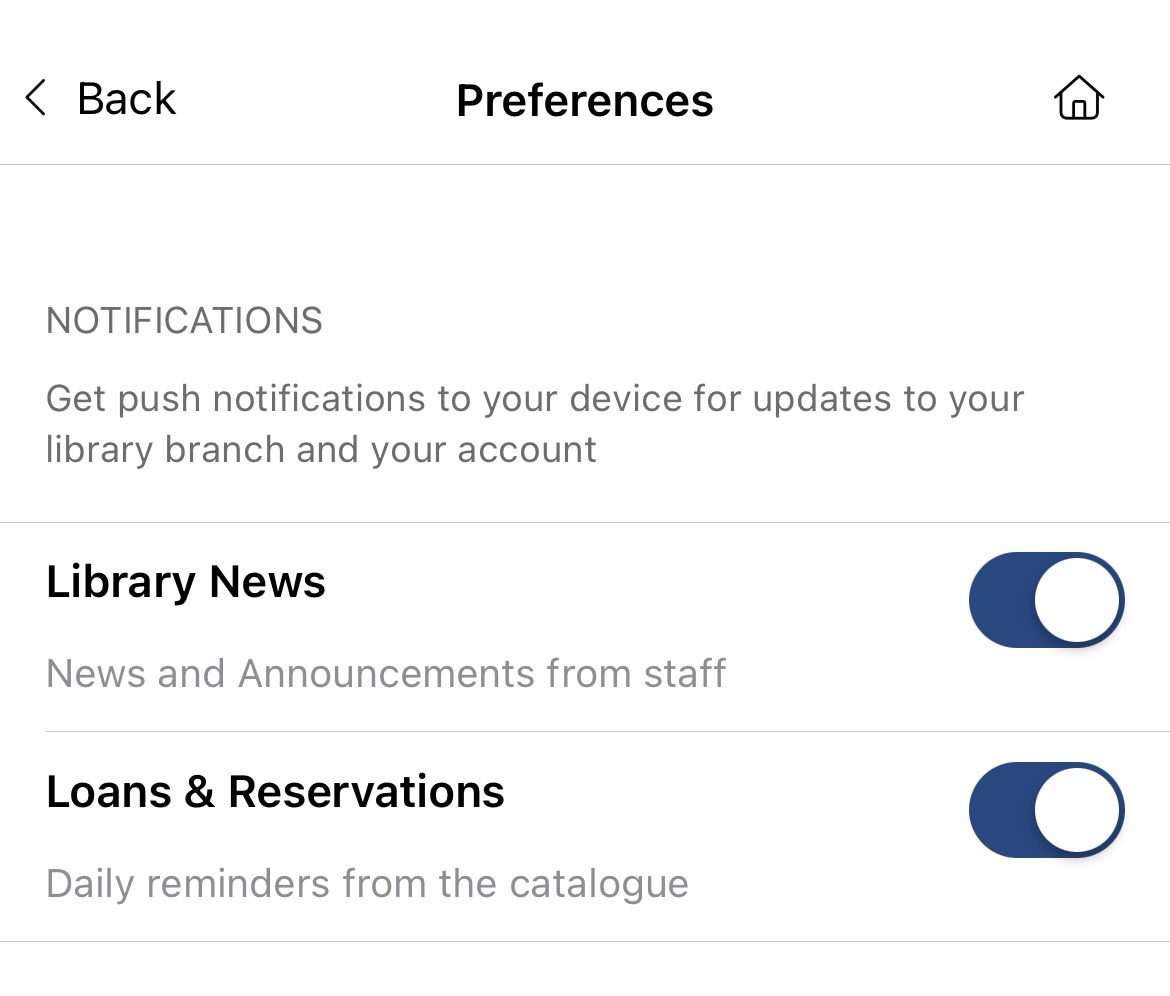
To receive notifications, you’ll need to turn them on in your settings. When in the app, click on the three stacked lines (Hamburger icon) next to the search bar to access your settings. Scroll down to preferences and tap on the word. Under notifications, you’ll need to turn on the notifications you wish to receive by tapping the toggle switch next to the notification type. You may also see a pop up to allow notifications – press allow.
Once this is completed it should look like this:
Digital Library Card
With the Waimakariri Libraries app, you’ll always have your card with you, even if you forget your wallet. When logged into your account on the app, you’ll be able to access the digital version of your library card. Click the My Barcode button and your library card will appear as a pop-up on the bottom of your devices screen. You can then use the barcode to issue books at the self-issue kiosks.
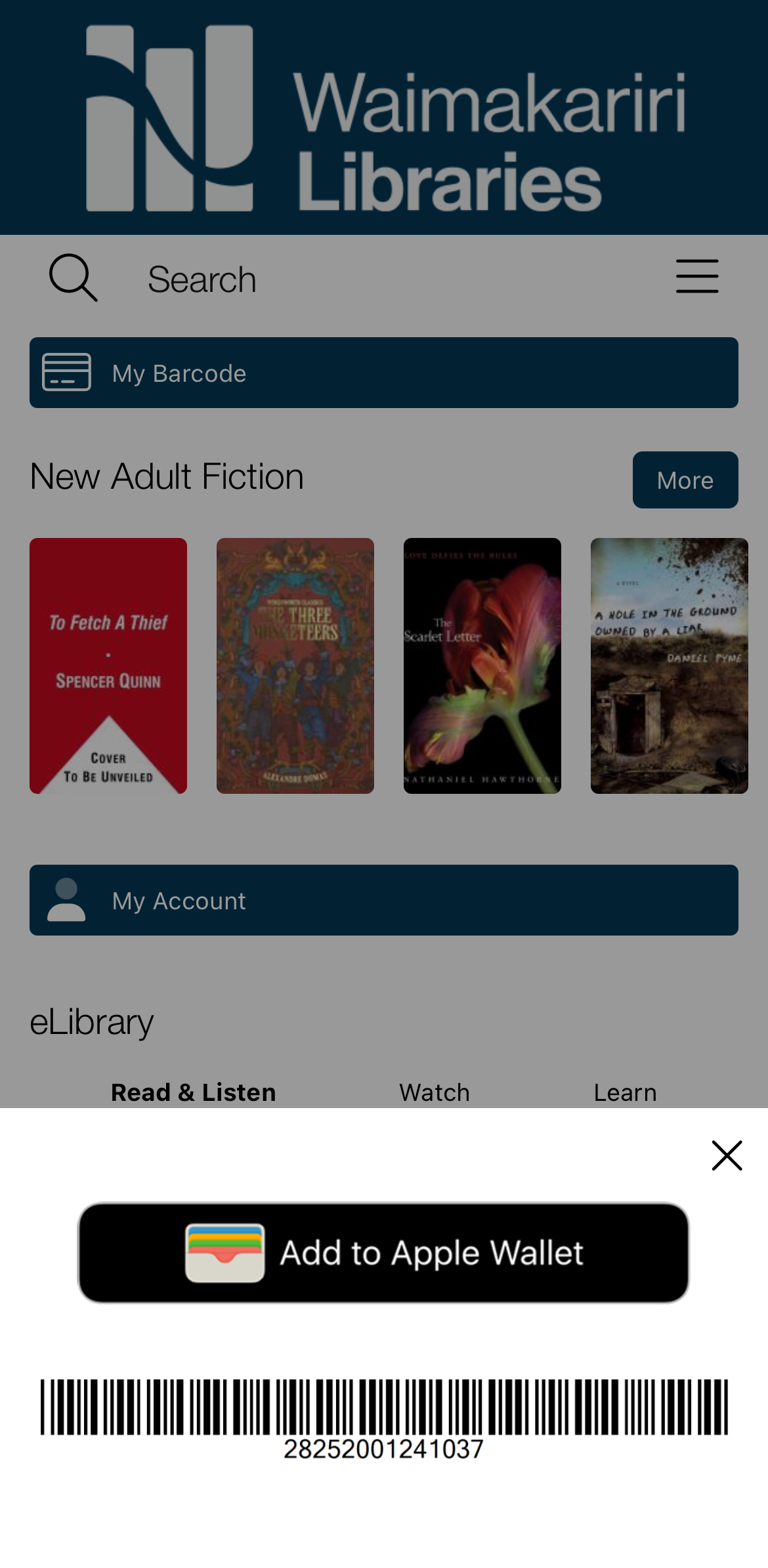
You can also add the digital card to your Google or Apple Wallet.
Link Library Cards
Have multiple library cards in your whānau? Manage them all by linking them in the app.
When in the app, click on the three stacked lines (Hamburger icon) next to the search bar to access your settings. Next, tap on ‘Linked Accounts’. In the top right-hand corner, you’ll find the ‘+Add’ button, tap it. Enter the library card details of the account you would like to link to. Repeat this for each family member’s account.